Google Tag Manager (Web)
Google Tag Manager (GTM) is the fastest, no-code way to install MoveoOne on a website: you add the official MoveoOne tag once, paste your token, and publish — no changes to your site's code. The MoveoOne tag is published in the GTM Community Template Gallery under divstechnologydev: MoveoOne GTM template.
PrerequisitesDirect link to Prerequisites
- A published GTM Web container for your site.
- Your MoveoOne token from the MoveoOne platform (Integrations page — the token is shown at the top).
1) Set up your GTM account and container (Web)Direct link to 1) Set up your GTM account and container (Web)
- Create or sign in to your Google Tag Manager account.
- Create a new container and choose type Web.
- Note the container ID (e.g.,
GTM-XXXXXXX) for installation.
For details, see Google’s guide: Set up and install Google Tag Manager.
2) Add the MoveoOne tag from the Community Template GalleryDirect link to 2) Add the MoveoOne tag from the Community Template Gallery
You can open the template page directly while signed in to Google Tag Manager: MoveoOne GTM template (gallery).
-
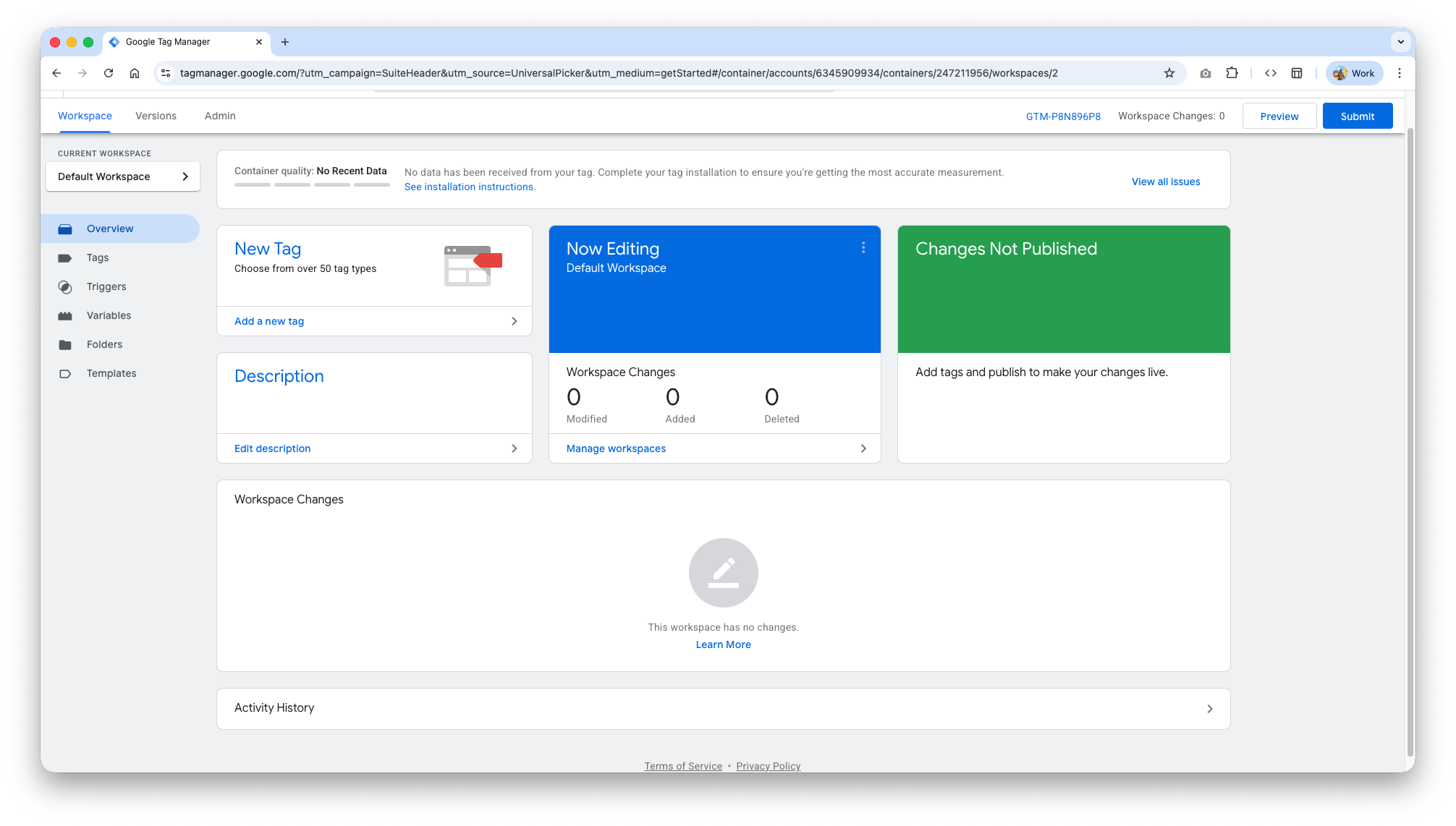
In GTM, go to Tags → New.
-
In Tag Configuration, open Discover more tag types in the Community Template Gallery.
-
Use the search (magnifying glass) and search for moveo — select MoveoOne by
divstechnologydev.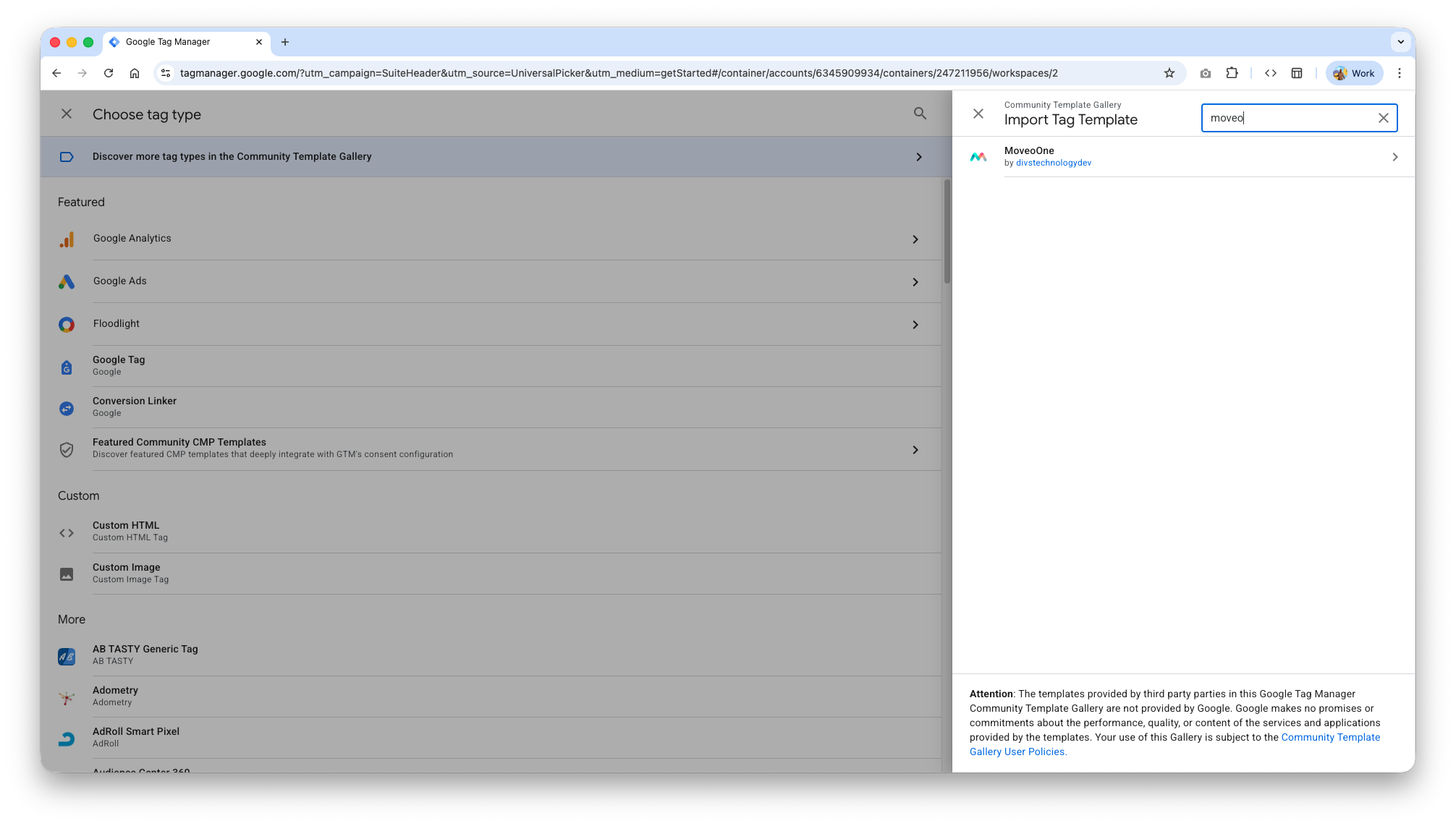
-
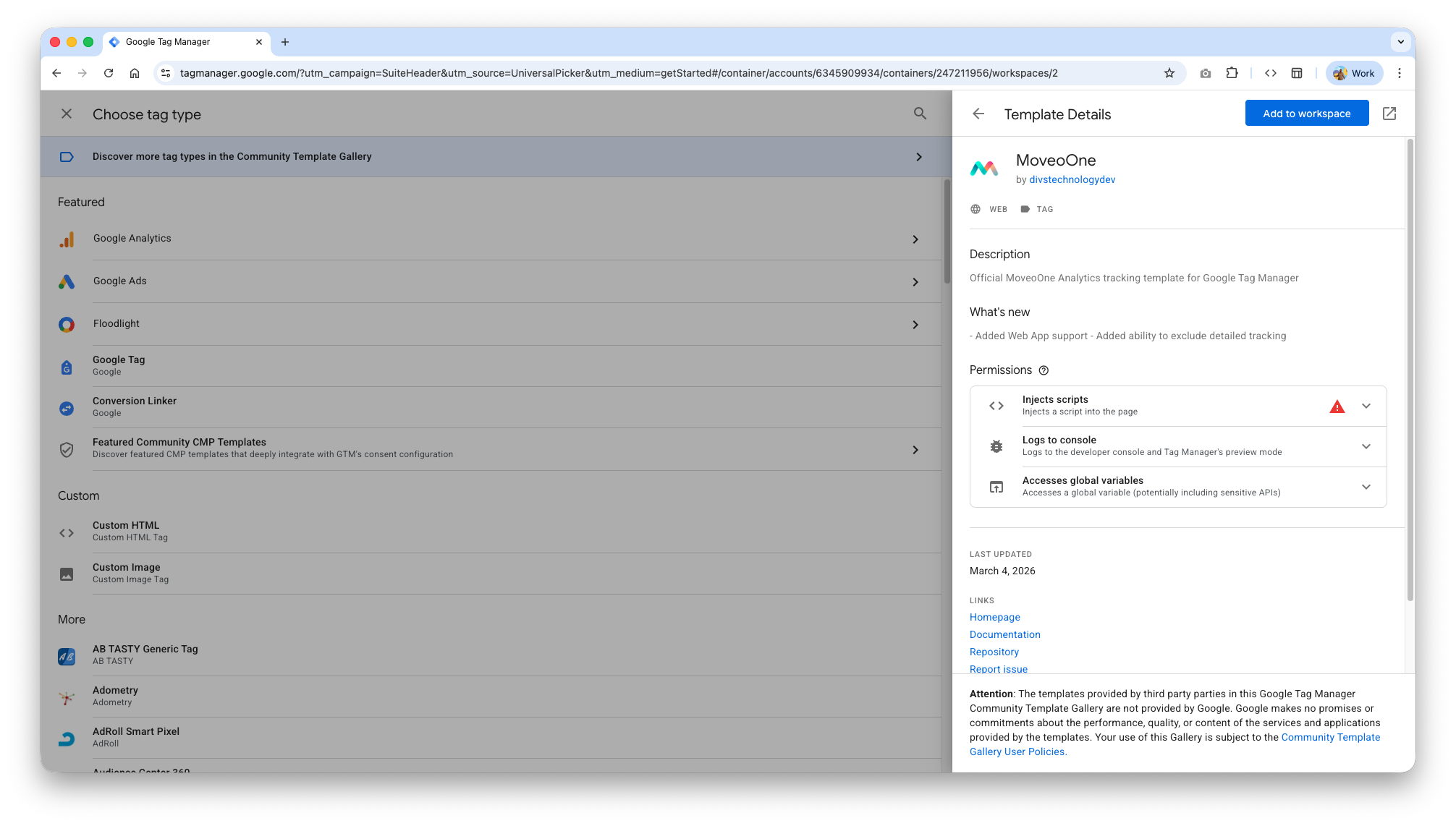
Review the template details, then click Add to workspace → Add.
3) Configure the MoveoOne tagDirect link to 3) Configure the MoveoOne tag
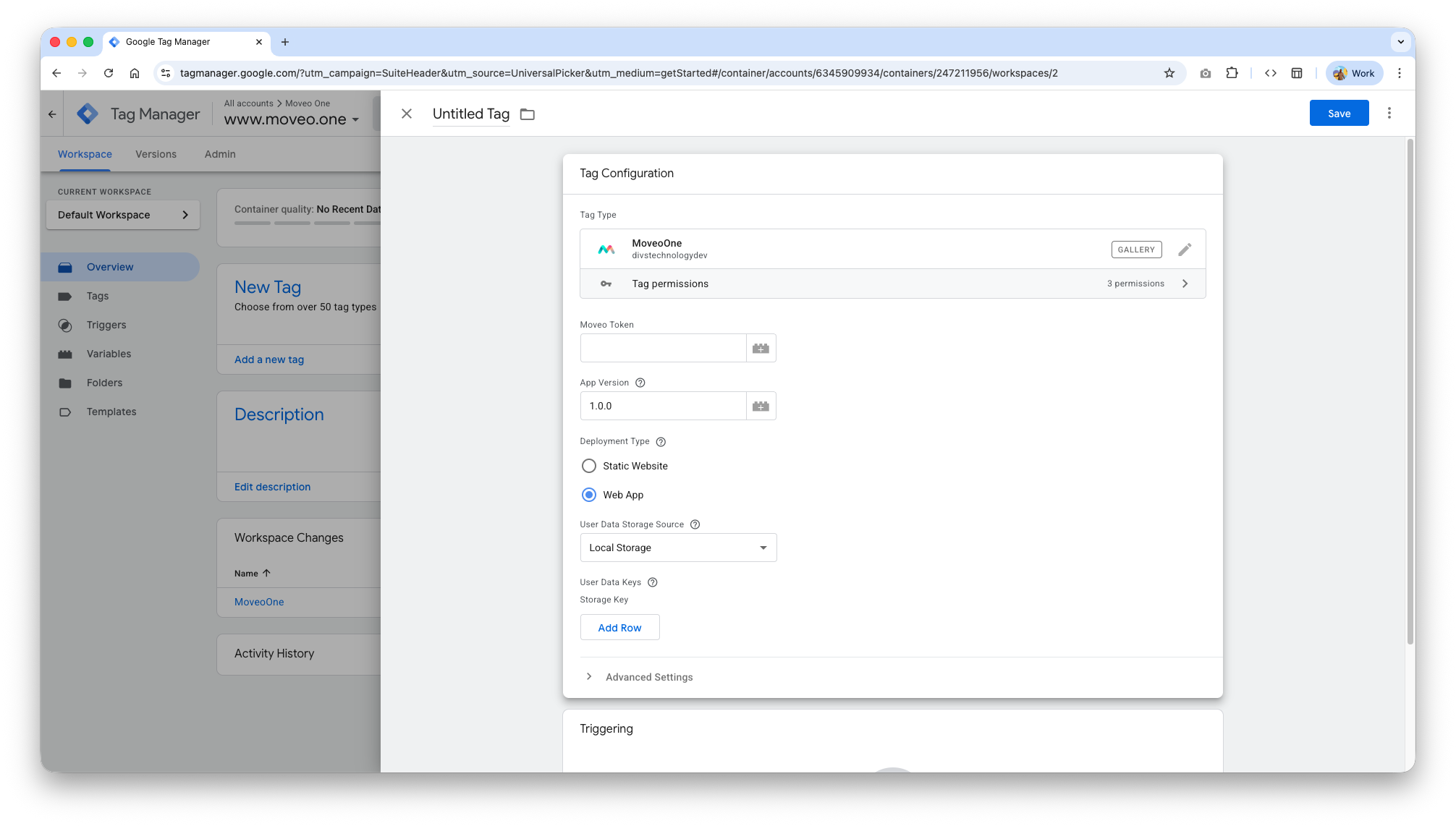
- With Tag Configuration still open, set the following:
Moveo token (required)
Paste the token from the MoveoOne platform (Integrations page, at the top).
App version
You can leave the default on a first release; bump it when you ship new versions if you want to segment by release.
Deployment type
Choose how your site is built:
- Web static — Use for mostly static sites (marketing pages, simple HTML, JAMstack without a rich client app). Tracking follows page loads and DOM behavior typical of static sites.
- Web app — Use for single-page applications (SPAs) and other client-heavy apps where routes and UI update without full reloads. This mode aligns tracking with in-app navigation and dynamic views.
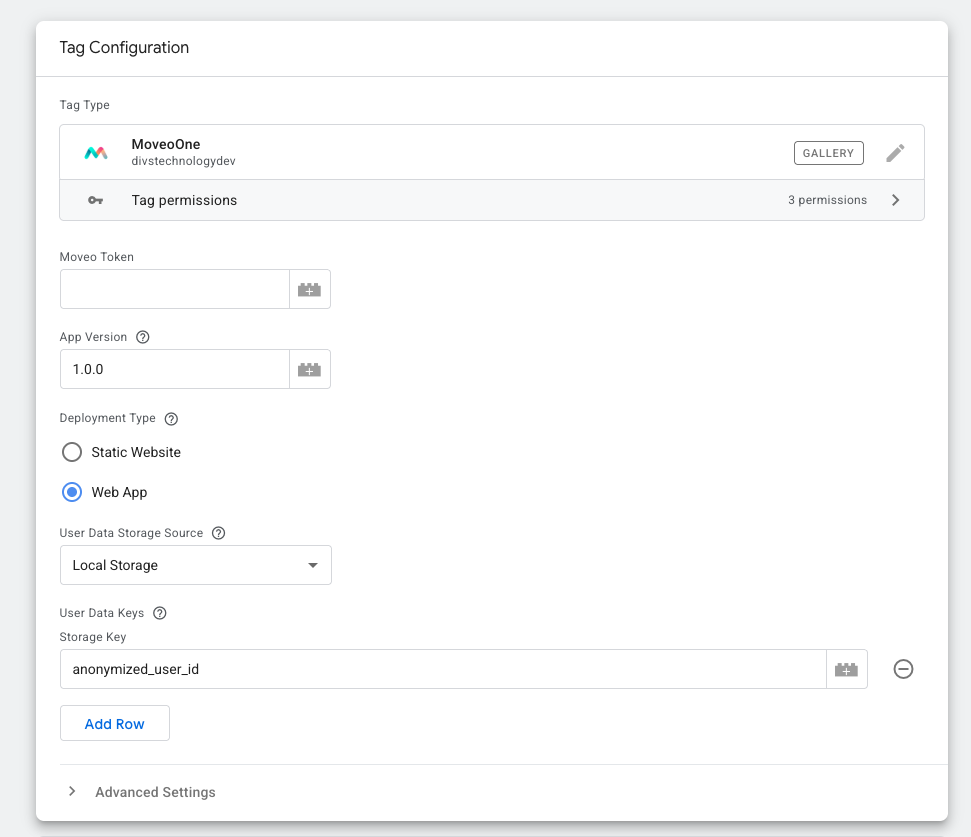
If you selected Web app, additional options appear for local storage and session storage:
- MoveoOne needs a stable user identifier across sessions in apps. Your application should store something like a user id (or anonymous id) in
localStorageorsessionStorage(or both, depending on your auth model). - Add one table row per key you want the tag to read from storage. Each row maps a storage key to the value MoveoOne should use (for example, the key your app uses for
userId). Without at least one sensible id key, cross-session recognition in an app may be weak.
Hash the user identifierDirect link to Hash the user identifier
Moveo One does not need a raw user ID — it only needs a stable, unique value to recognize a returning user. For privacy, store an already-hashed identifier in your storage (for example a key named hashed_user_id or anonymized_user_id) and point the Storage Key row at that key instead of a raw userId.
-
Choose your User Data Storage Source —
Local Storage(persists across sessions) orSession Storage(cleared when the tab closes).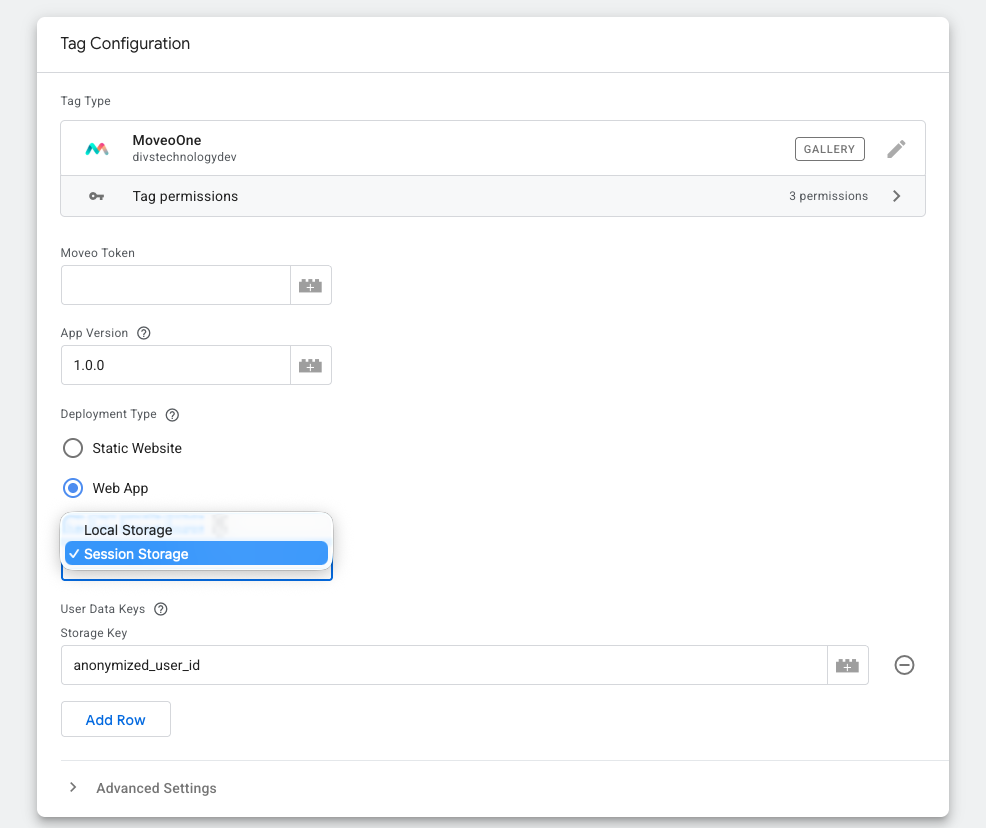
-
Set the Storage Key to the key that holds your hashed identifier.
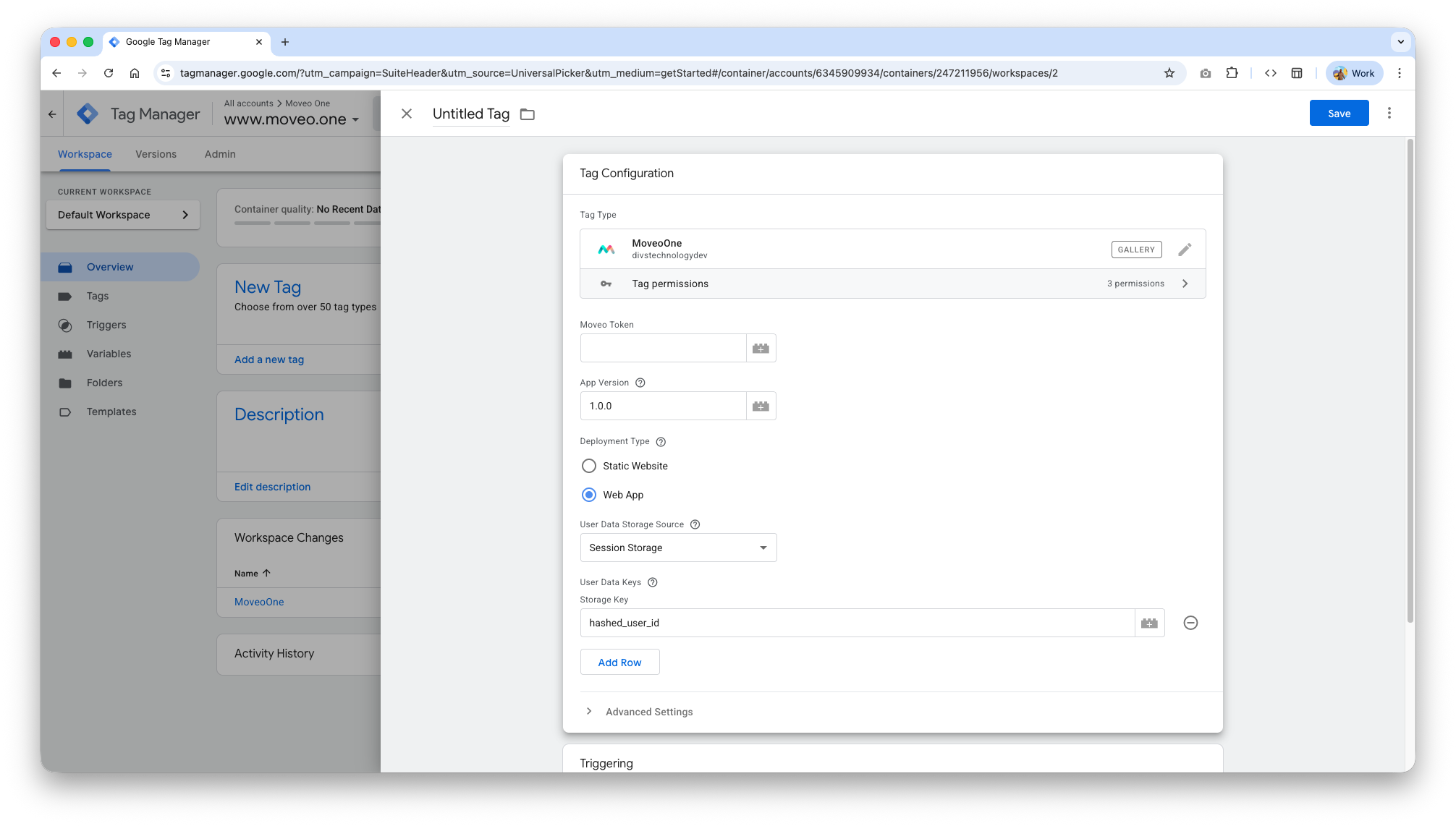
Because the same input always hashes to the same output, cross-session recognition still works — but no personally identifiable value ever reaches Moveo One. If you also send data through PostHog, you can hash there too; see PostHog → Privacy.
Exclude detailed tracking
When enabled, this reduces low-level UX signals (for example, appearance and disappearance of containers and similar DOM-level detail). Use it if you want a leaner stream and do not need that granularity.
Users who are more business-logic oriented and want to analyze and predict business metrics with richer behavioral context should leave this option off (do not exclude detailed tracking), so container and interaction-level signals remain available.
- Below Tag Configuration, open Triggering and choose All Pages so the tag runs on every page load GTM covers.
4) Publish your GTM containerDirect link to 4) Publish your GTM container
- Click Submit.
- Publish a new version of the container so the MoveoOne tag goes live.
5) Add the GTM snippet to your siteDirect link to 5) Add the GTM snippet to your site
If the snippet is not already on your site:
- In the Google Tag Manager main workspace, click your container ID (
GTM-XXXXXXX). - Choose Install Google Tag Manager and copy the snippets Google provides.
- Add them to your site’s HTML per Google’s instructions.
Important: Place the GTM snippet on every page you want to track. Pages without the snippet will not fire GTM tags, including MoveoOne.
Implementation details vary by platform (Shopify, WordPress, static hosting, etc.). See: Install Google Tag Manager.
VerifyDirect link to Verify
- Use GTM Preview to load your site and confirm the MoveoOne tag fires on All Pages.
- Check the browser Network tab for
moveo-one-script.min.jsrequests.
TroubleshootingDirect link to Troubleshooting
- Tag not firing: ensure the trigger is All Pages and the container version is published.
- Missing token: the tag requires Moveo token; leaving it blank will cause initialization to fail.
- Ad blockers: script injection can be blocked by extensions; test in an incognito window with extensions disabled.
What the template doesDirect link to What the template does
- Loads the MoveoOne library and initializes it with your configuration (token, deployment type, app version, optional locale/tests, storage keys for web app mode, and optional exclusion of detailed tracking).
- Template permissions (visible in GTM) include script injection for the MoveoOne library and running initialization in the page context.