PostHog Integration
If you already capture product analytics with PostHog, you can stream that data into Moveo One and put your existing events to work for predictive UX and behavioral modeling — without re-instrumenting your app.
There are two ways to connect, and you can use either one or both:
| Mode | Latency | Best for | PostHog feature |
|---|---|---|---|
| Real-time webhook | Seconds | Live predictions, always-on sync | Destination → HTTP Webhook |
| Hourly batch (S3 export) | ~1 hour | Backfilling history, high volume, lower cost | Destination → S3 batch export |
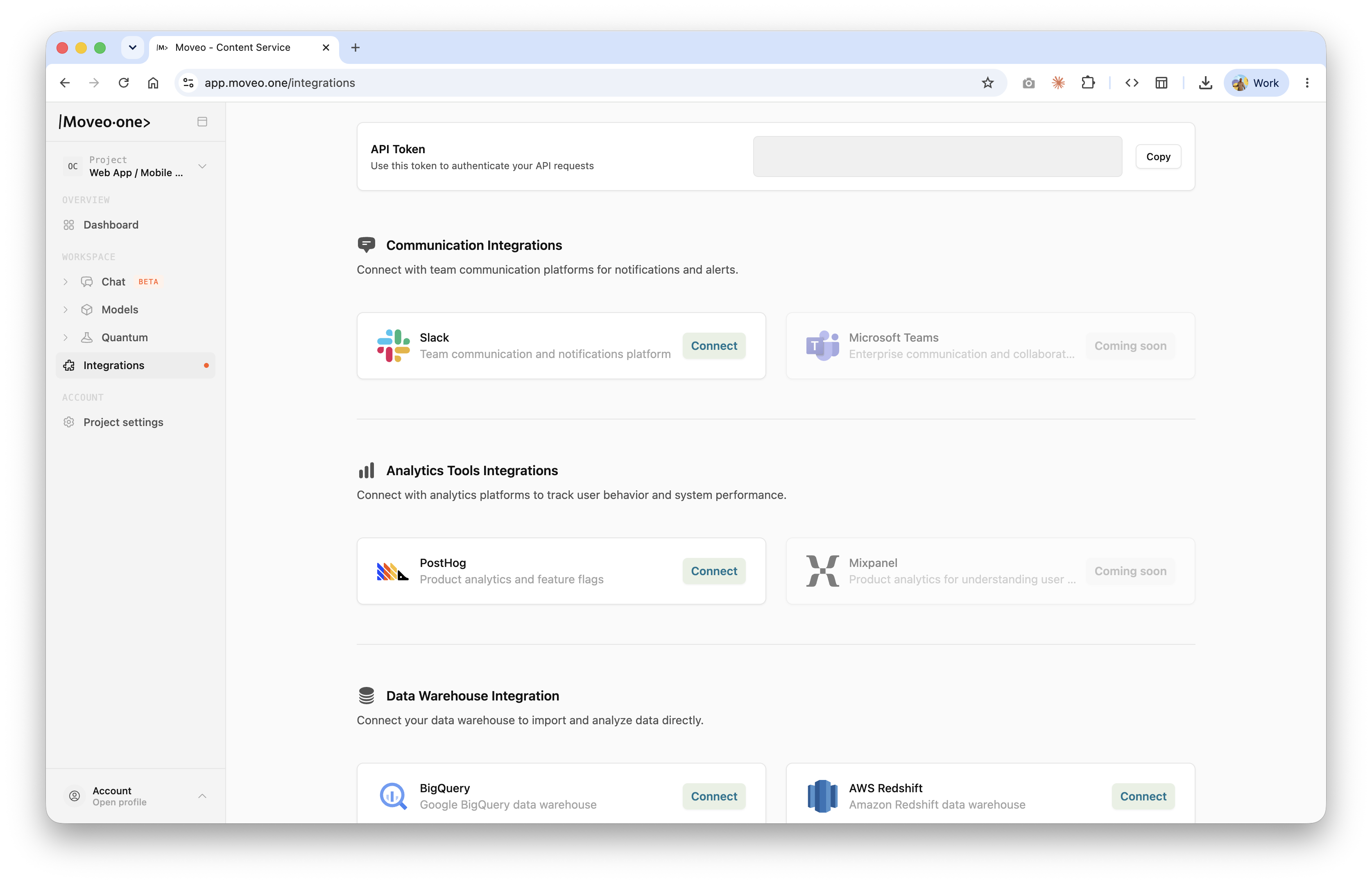
Both modes are configured entirely inside PostHog and authenticated with credentials Moveo One gives you on the Integrations page of the Moveo One app. That's also where you click Connect on the PostHog card and copy your API Token — the single token that authenticates every Moveo One integration.
Before turning on either mode, set up the optional but recommended Hash user identifiers step so no raw user IDs or emails ever leave PostHog. Moveo One does not need raw PII to build models.
Where to configureDirect link to Where to configure
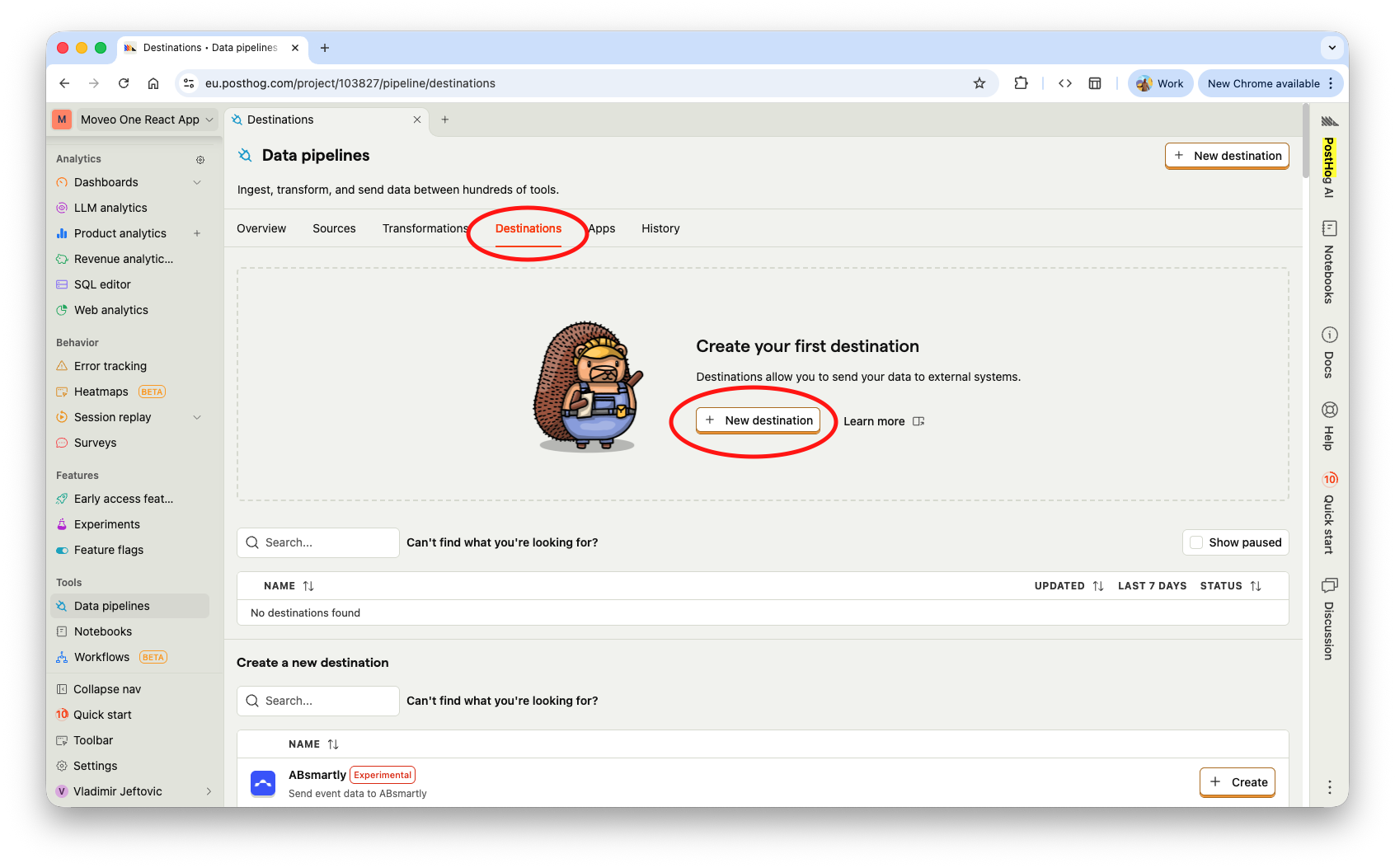
Everything lives under Data pipelines in PostHog (left sidebar → Data pipelines), on the Destinations tab.
Option A — Real-time webhookDirect link to Option A — Real-time webhook
This mode pushes each event to Moveo One as it happens.
-
In PostHog, go to Data pipelines → Destinations → New destination.
-
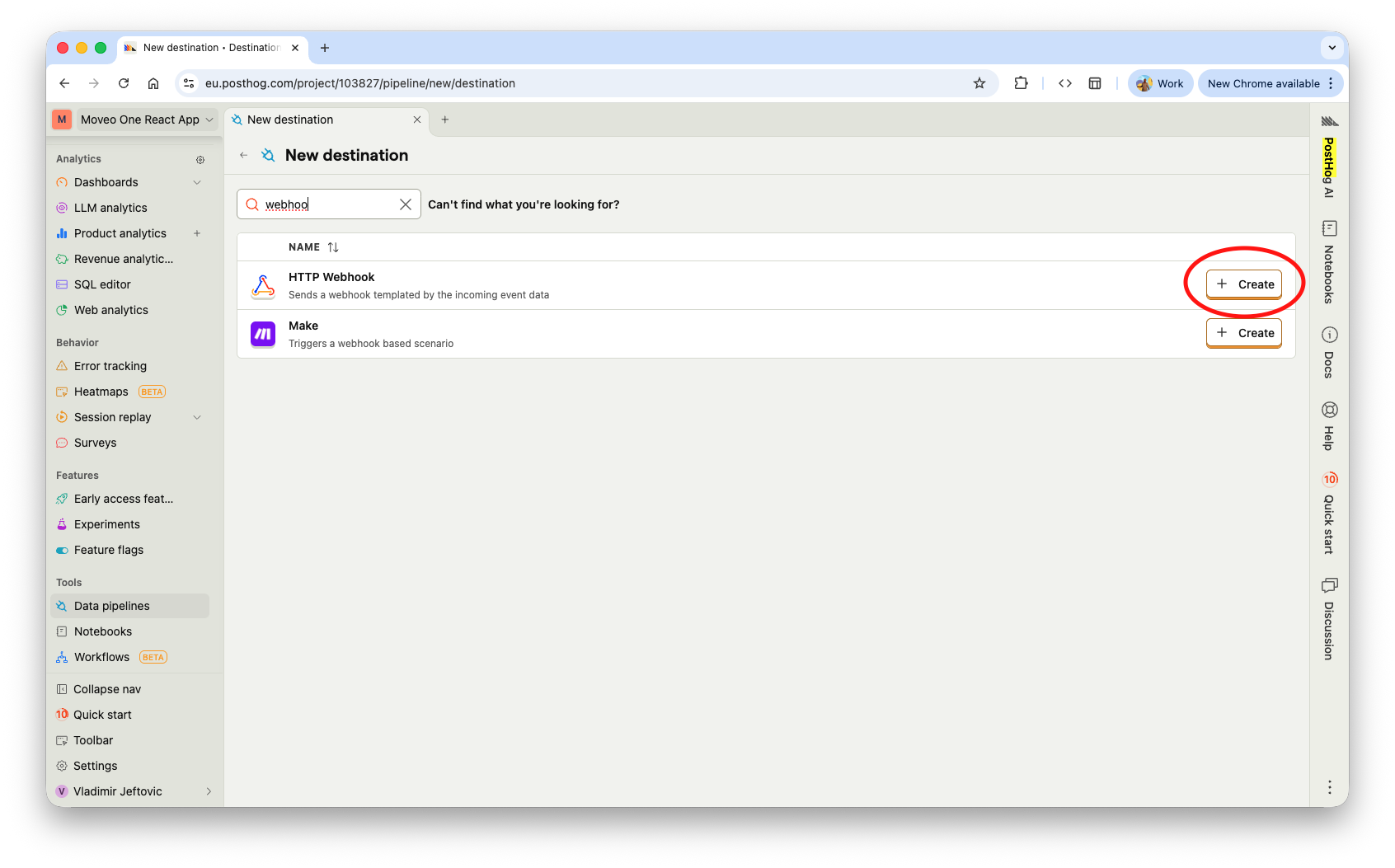
Search for Webhook and click Create on HTTP Webhook.
-
Configure the destination exactly as below:
Field Value Webhook URL https://api.moveo.one/api/analytic/external/posthog-web-hookMethod POSTHeader Content-Typeapplication/jsonHeader Authorizationyour Moveo One token (from the Integrations page) 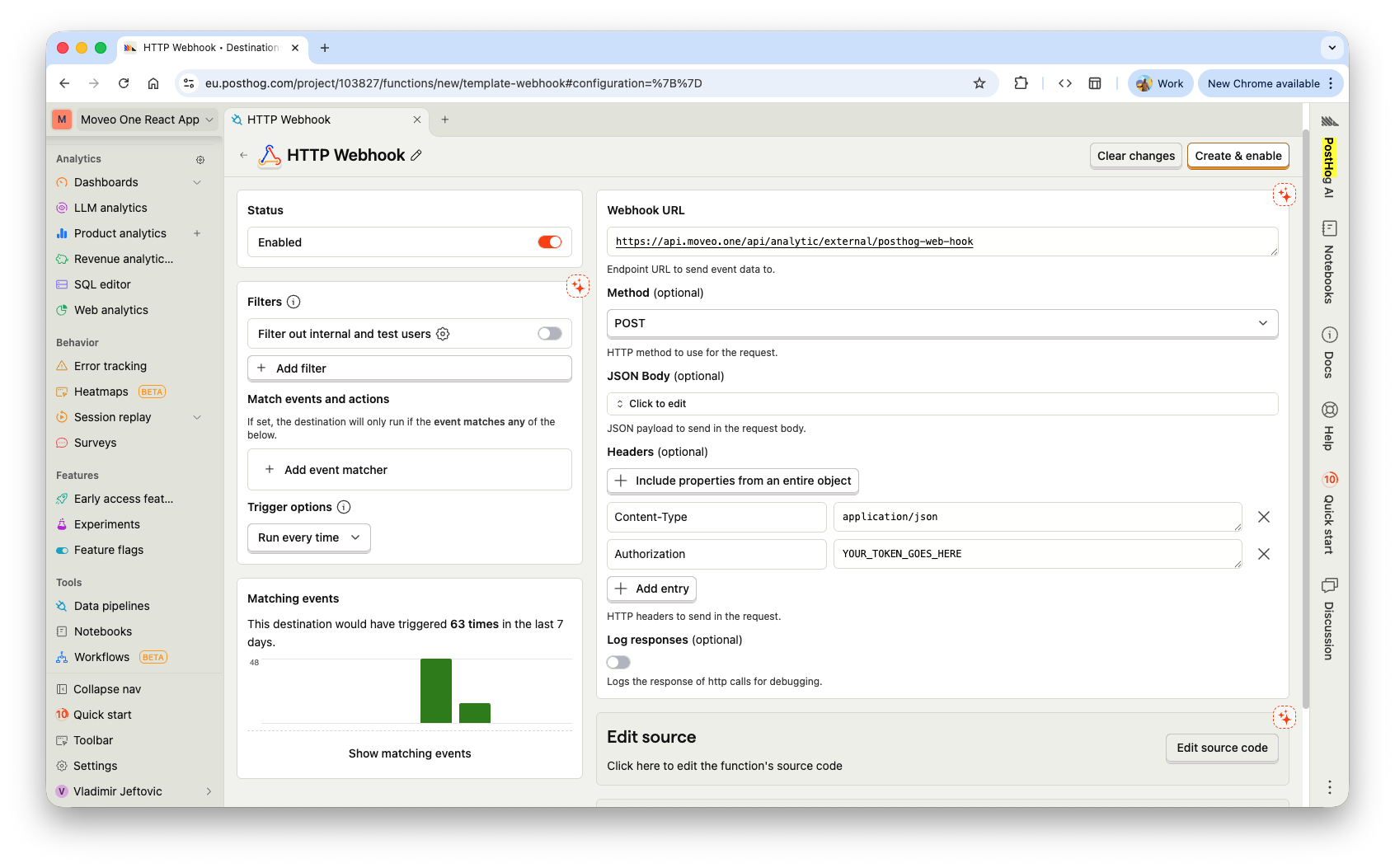
-
(Optional) Add a filter or event matcher if you only want to forward specific events. Leave it unset to forward everything.
-
Toggle Enabled and click Create & enable.
Events now flow into Moveo One within seconds. You can watch the Matching events sparkline in PostHog to confirm volume.
Option B — Hourly batch (S3 export)Direct link to Option B — Hourly batch (S3 export)
In this mode PostHog writes hourly event exports to a storage bucket that Moveo One owns, and Moveo One ingests from those exports on an hourly schedule. It's ideal for backfilling historical data and for high event volumes.
1. Get your bucket credentials from Moveo OneDirect link to 1. Get your bucket credentials from Moveo One
In the Moveo One app, open Integrations → PostHog. The modal shows everything you need to paste into PostHog:
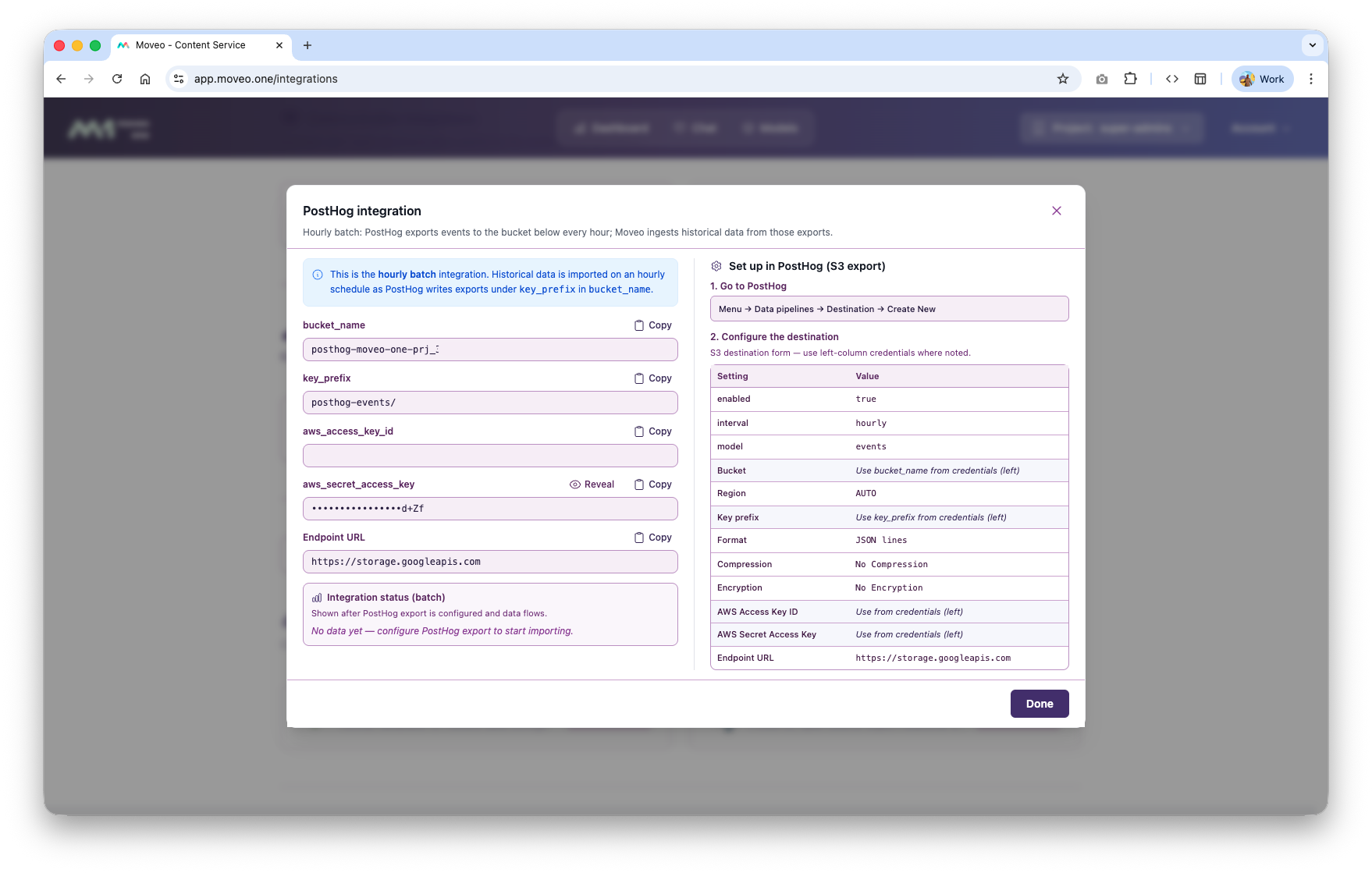
| Moveo One field | Use in PostHog as |
|---|---|
bucket_name | Bucket |
key_prefix (e.g. posthog-events/) | Key prefix |
aws_access_key_id | AWS Access Key ID |
aws_secret_access_key | AWS Secret Access Key |
Endpoint URL (https://storage.googleapis.com) | Endpoint URL |
The bucket is S3-compatible Google Cloud Storage, which is why the endpoint is https://storage.googleapis.com and the region is AUTO. Treat the access key and secret like passwords — keep them out of source control.
2. Create the S3 destination in PostHogDirect link to 2. Create the S3 destination in PostHog
-
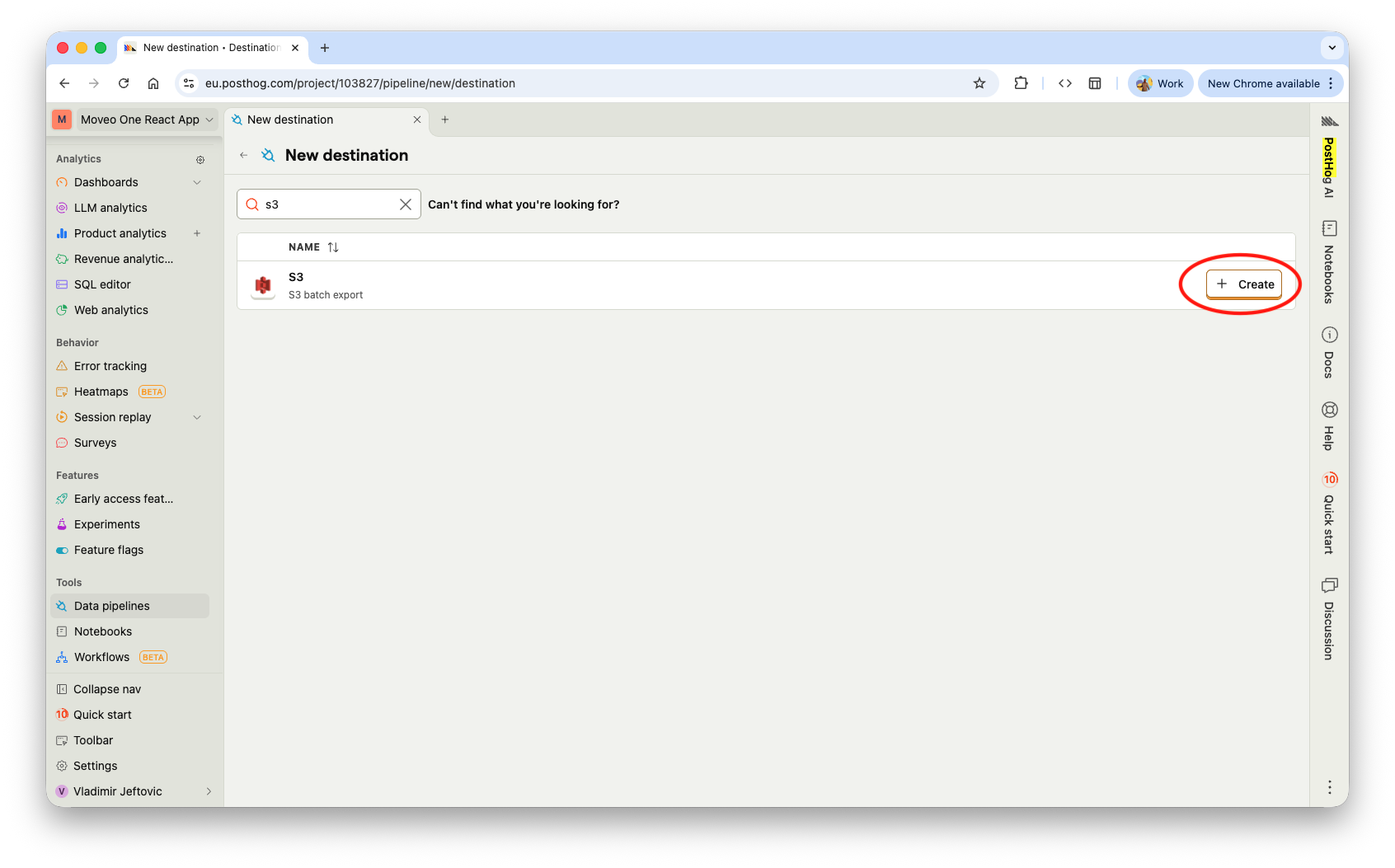
In PostHog, go to Data pipelines → Destinations → New destination, search S3, and click Create.
-
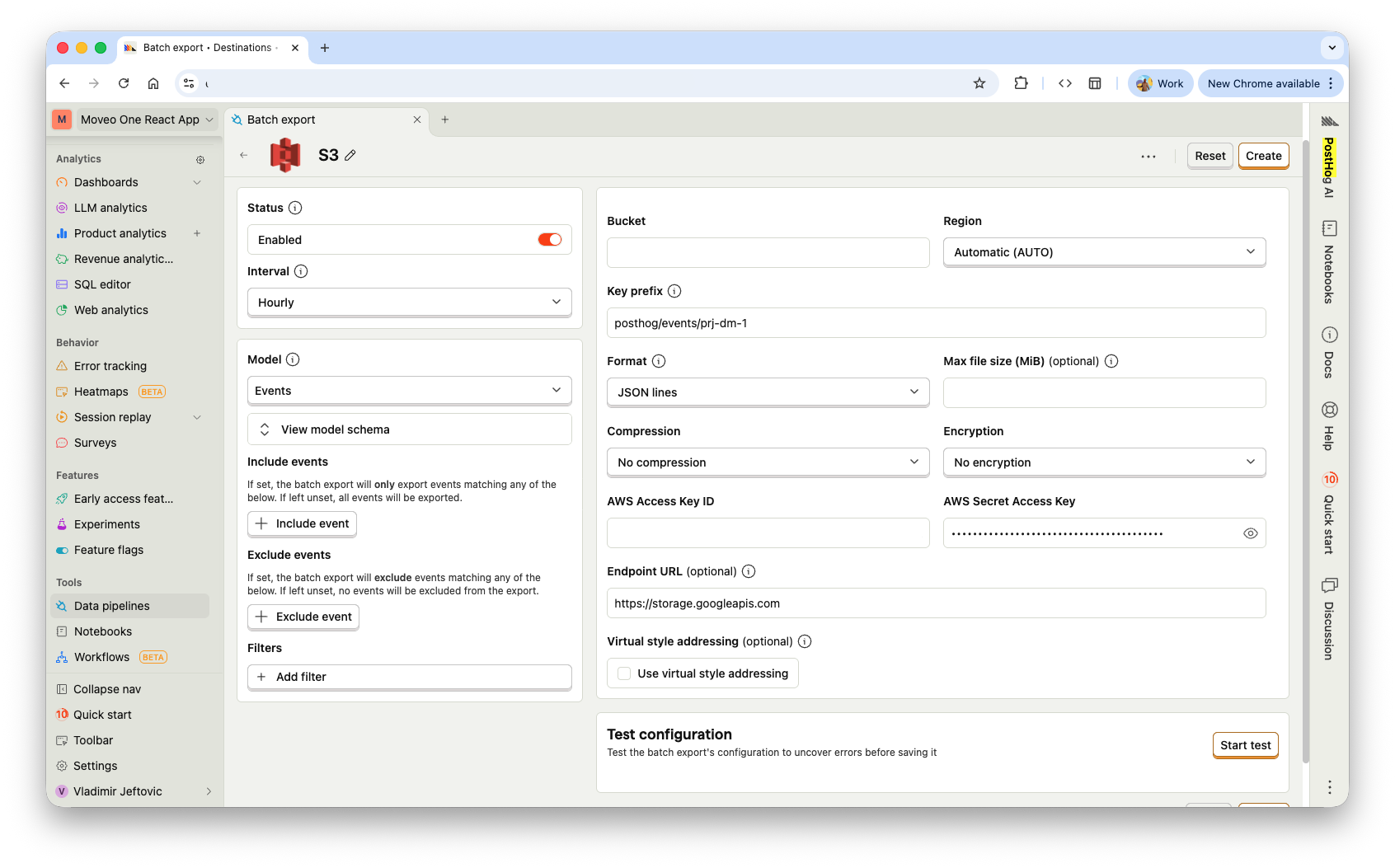
Fill the S3 destination form using the values from the Moveo One modal:
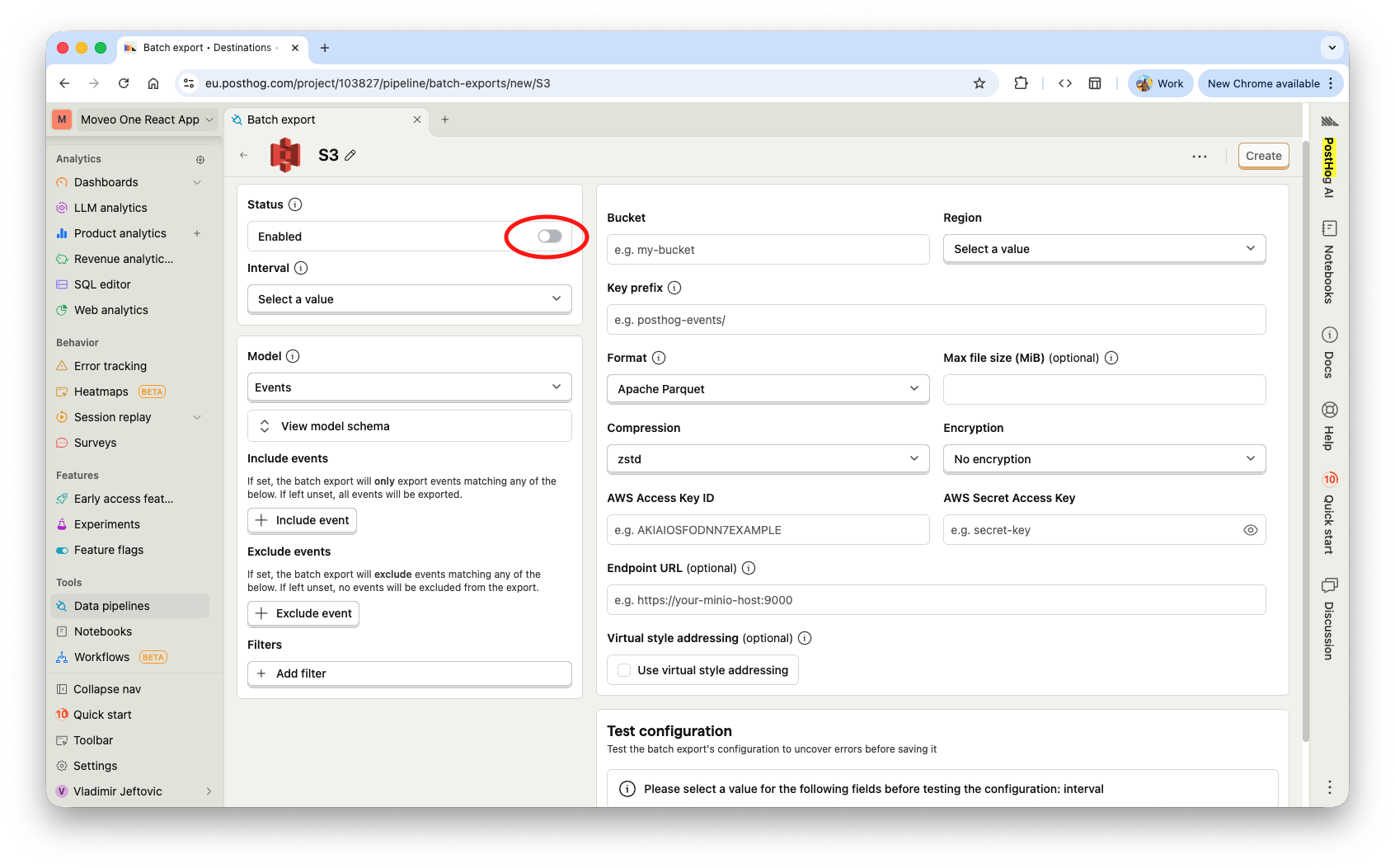
Setting Value Enabled on Interval HourlyModel EventsBucket bucket_namefrom Moveo OneRegion Automatic (AUTO)Key prefix key_prefixfrom Moveo OneFormat JSON linesCompression No compressionEncryption No encryptionAWS Access Key ID from Moveo One AWS Secret Access Key from Moveo One Endpoint URL https://storage.googleapis.comA completed form looks like this (credentials masked):
-
Click Start test to verify PostHog can write to the bucket, then Create.
PostHog now writes an export every hour, and Moveo One picks it up on its own hourly schedule. Historical data backfills automatically as PostHog writes it under your key_prefix.
Privacy: hash user identifiersDirect link to Privacy: hash user identifiers
Moveo One builds behavioral models from event structure and sequence — it does not need raw user IDs, names, or emails. We strongly recommend hashing those fields inside PostHog before they're exported, so only pseudonymous identifiers ever leave your account. This keeps cross-session modeling intact while protecting PII.
PostHog ships a built-in Hash properties transformation (SHA-256 + salt) for exactly this.
-
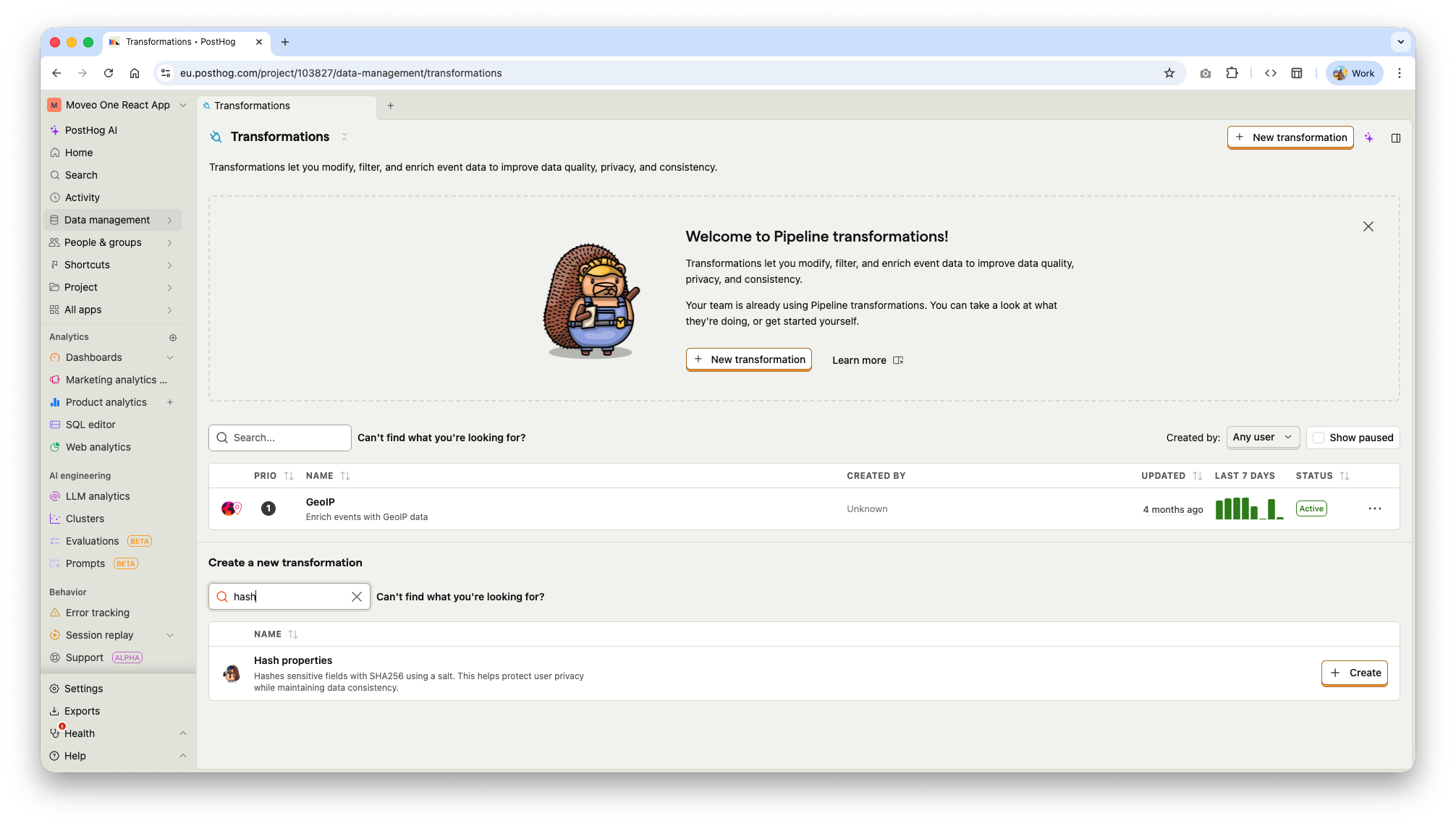
In PostHog, go to Data pipelines → Transformations → New transformation and search hash.
-
Open Hash properties and configure it:
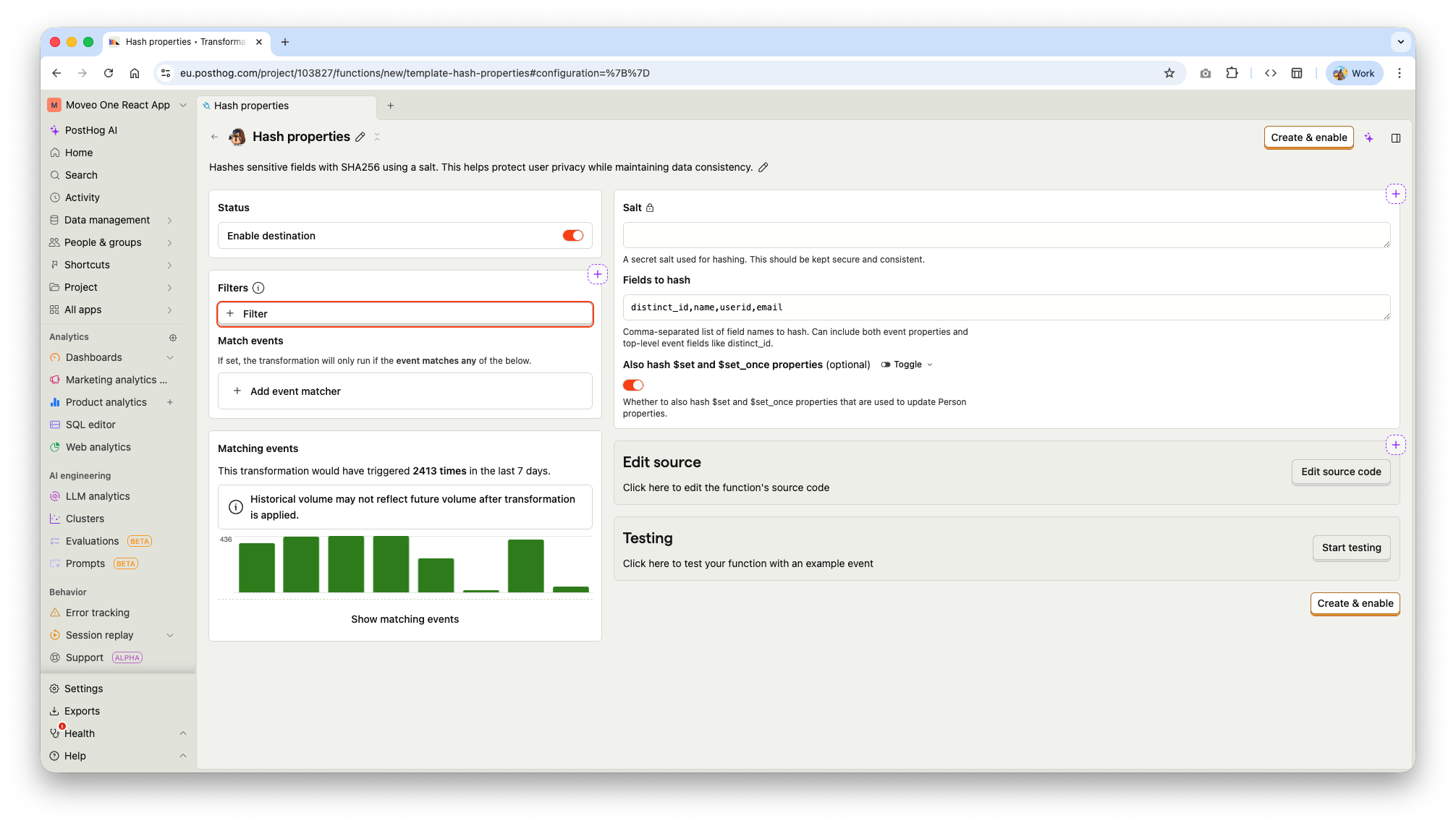
Field Value Salt a secret, consistent value you keep secure Fields to hash distinct_id,name,userid,emailAlso hash $set/$set_onceon (so Person properties are hashed too) -
Click Create & enable.
The salt must stay the same over time. The same input always hashes to the same output, which is what lets Moveo One recognize a returning user across sessions. If you change the salt, previously hashed identifiers will no longer match.
This transformation runs on the same pipeline as both the webhook and the S3 export, so it protects either mode.
Hashing the user ID at the source (web)Direct link to Hashing the user ID at the source (web)
If you install Moveo One on the web through Google Tag Manager, you can also feed it an already-hashed user identifier from storage (e.g. hashed_user_id) instead of a raw one — see the GTM guide for that flow. The two approaches are complementary: hash at the source where you can, and use PostHog's transformation as a safety net.
Verify the integrationDirect link to Verify the integration
- Webhook: trigger an event in your product and confirm the PostHog destination's Matching events counter increments, then check that sessions appear in the Moveo One app.
- Batch: after the first hourly export, the Moveo One Integrations modal updates from "No data yet" to show ingestion status.
- Either way, your Moveo One dashboard begins populating with DAU/WAU, retention, and the data needed to build predictive models.
TroubleshootingDirect link to Troubleshooting
- Webhook returns 401/403 — the
Authorizationheader is missing or wrong. Re-copy your token from the Moveo One Integrations page. - S3 test fails — re-check the bucket name, key prefix, access key/secret, and that Endpoint URL is
https://storage.googleapis.comwith region AUTO. - No data after an hour (batch) — confirm the export Interval is
Hourlyand Format isJSON lines, and that the destination is Enabled.
Need help? Reach us at support@moveo.one.