BigQuery Integration
Connect your Google BigQuery data warehouse to Moveo One to import existing datasets and tables — so behavioral data you already store in BigQuery can power Moveo One's analytics and predictive models without re-instrumenting anything.
How it worksDirect link to How it works
You give Moveo One a read-only Google Cloud service account and tell it which dataset and tables to read. Moveo One then syncs those tables in and keeps them up to date.
PrerequisitesDirect link to Prerequisites
- A Google Cloud service account JSON key file with BigQuery read permissions for the dataset you want to import.
- The Dataset ID and the Table IDs you want Moveo One to access.
- Your Moveo One project (the Integrations page in the Moveo One app).
SetupDirect link to Setup
-
In the Moveo One app, go to Integrations → Data Warehouse → BigQuery → Connect.
-
Configure the integration:
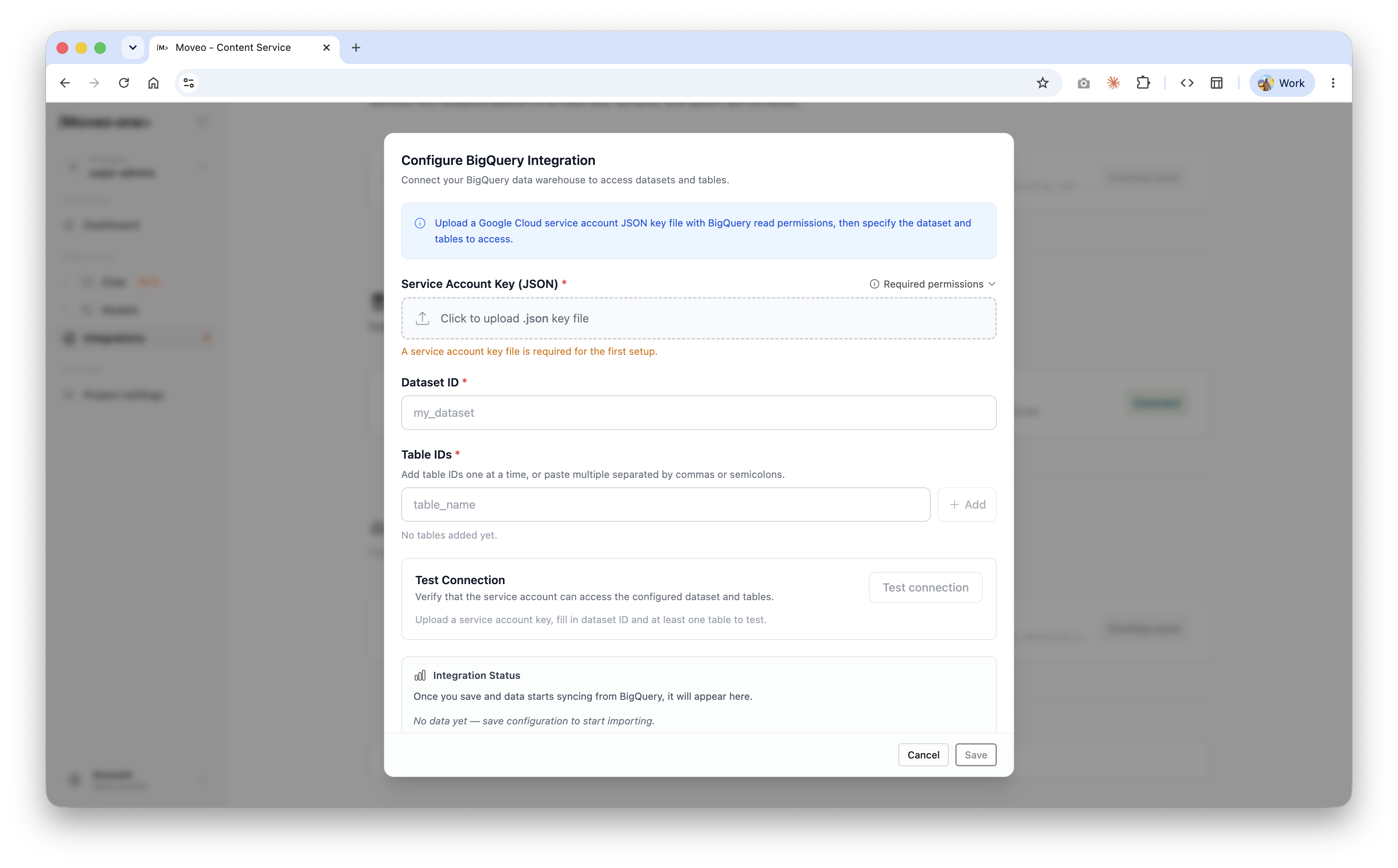
Field Required Notes Service Account Key (JSON) ✅ Upload a .jsonkey file with BigQuery read permissions. Open Required permissions to see exactly what's needed. A key file is required for the first setup.Dataset ID ✅ e.g. my_datasetTable IDs ✅ Add one at a time, or paste multiple separated by commas or semicolons, then Add. -
Click Test connection to verify the service account can access the configured dataset and tables. (You need a key uploaded, a Dataset ID, and at least one table to run the test.)
-
Click Save to start importing.
VerifyDirect link to Verify
Once you save and data starts syncing, the Integration Status panel updates from "No data yet" to show import progress, and the imported data becomes available in your Moveo One dashboard.
TroubleshootingDirect link to Troubleshooting
- Test connection fails — confirm the service account has BigQuery read access to the dataset, and that the Dataset ID and Table IDs are spelled exactly as in BigQuery.
- No data after saving — make sure at least one valid table was added and that the service account key hasn't been revoked.
Need help? Reach us at support@moveo.one.