Slack Integration
Connect Slack to Moveo One to get notifications and alerts delivered straight to your team's channels — powered by the M1 Notifier Slack app.
How it worksDirect link to How it works
Moveo One uses an OAuth-based Slack app called M1 Notifier. When you connect, you authorize it for a specific Slack workspace; Moveo One can then post messages (notifications and alerts) into your channels.
PrerequisitesDirect link to Prerequisites
- A Slack workspace where you can install apps (or an admin who can approve the install).
- Your Moveo One project (the Integrations page in the Moveo One app).
SetupDirect link to Setup
-
In the Moveo One app, go to Integrations → Communication → Slack → Connect.
-
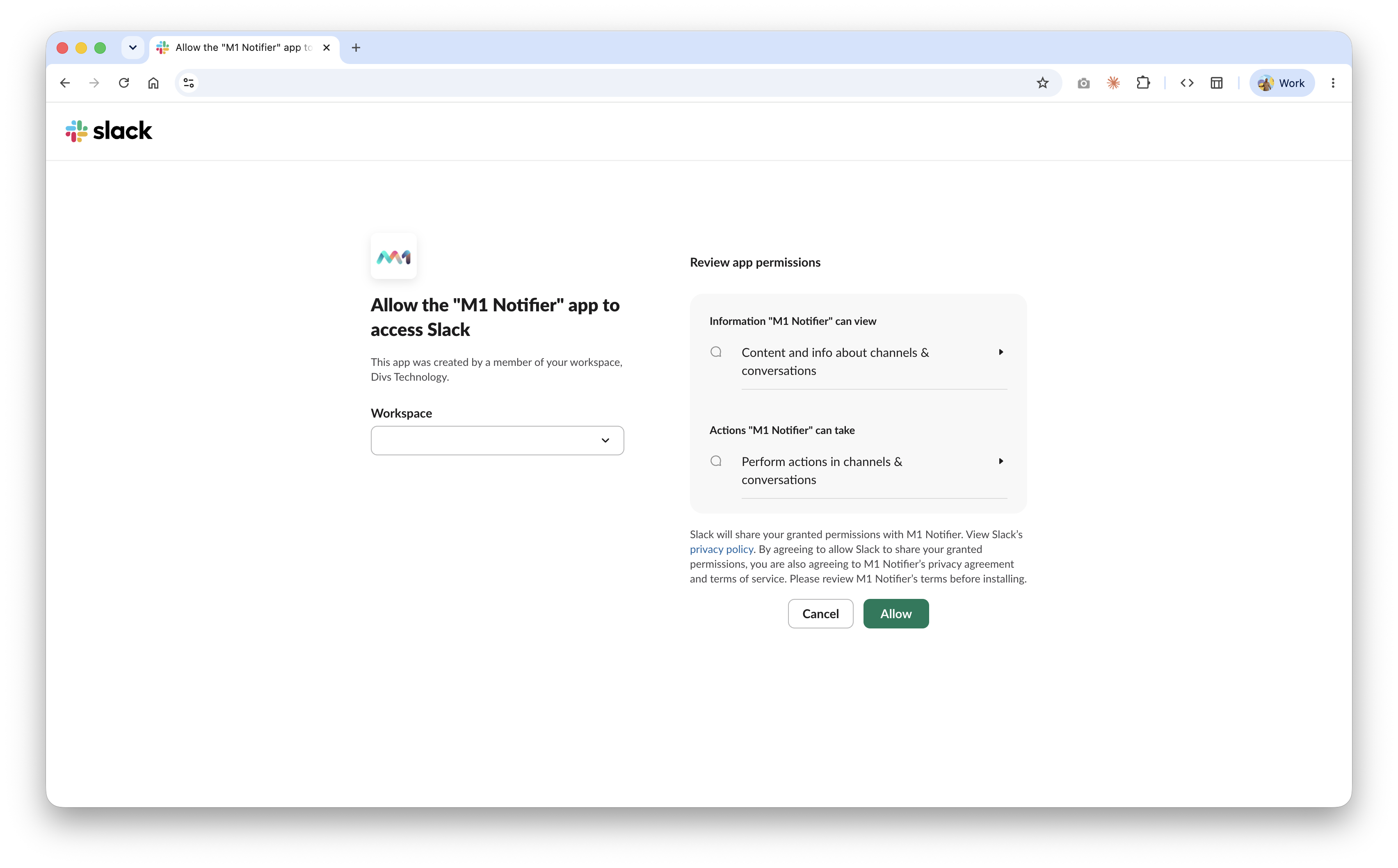
You're taken to Slack's authorization screen for the M1 Notifier app:
-
Choose the Workspace to install into.
-
Review the requested permissions:
- Information M1 Notifier can view — content and info about channels & conversations.
- Actions M1 Notifier can take — perform actions in channels & conversations (so it can post notifications).
-
Click Allow to complete the connection.
VerifyDirect link to Verify
Back in Moveo One, the Slack integration shows as connected. From there you can route Moveo One notifications and alerts to your Slack channels.
TroubleshootingDirect link to Troubleshooting
- "Allow" is disabled / needs approval — your Slack workspace may require admin approval to install apps; ask a workspace admin to approve M1 Notifier.
- No messages arriving — confirm the integration is still connected and that M1 Notifier has access to the target channel.
Need help? Reach us at support@moveo.one.