Amazon Redshift Integration
Connect an Amazon Redshift cluster to Moveo One and incrementally sync data into the platform — bringing behavioral data you already warehouse in Redshift into Moveo One's analytics and predictive models.
How it worksDirect link to How it works
You provide Redshift connection details plus a SELECT query that returns the rows to import. Moveo One runs that query on a schedule and uses a cursor (watermark) column to fetch only new or updated rows each time, so syncs stay incremental rather than re-reading everything.
PrerequisitesDirect link to Prerequisites
- A reachable Redshift cluster and credentials (a database user with read access to the relevant tables).
- A
SELECTquery for the data you want to import, including a column suitable as an incremental cursor (e.g.updated_at). - Your Moveo One project (the Integrations page in the Moveo One app).
SetupDirect link to Setup
-
In the Moveo One app, go to Integrations → Data Warehouse → AWS Redshift → Connect.
-
Fill in the adaptor form:
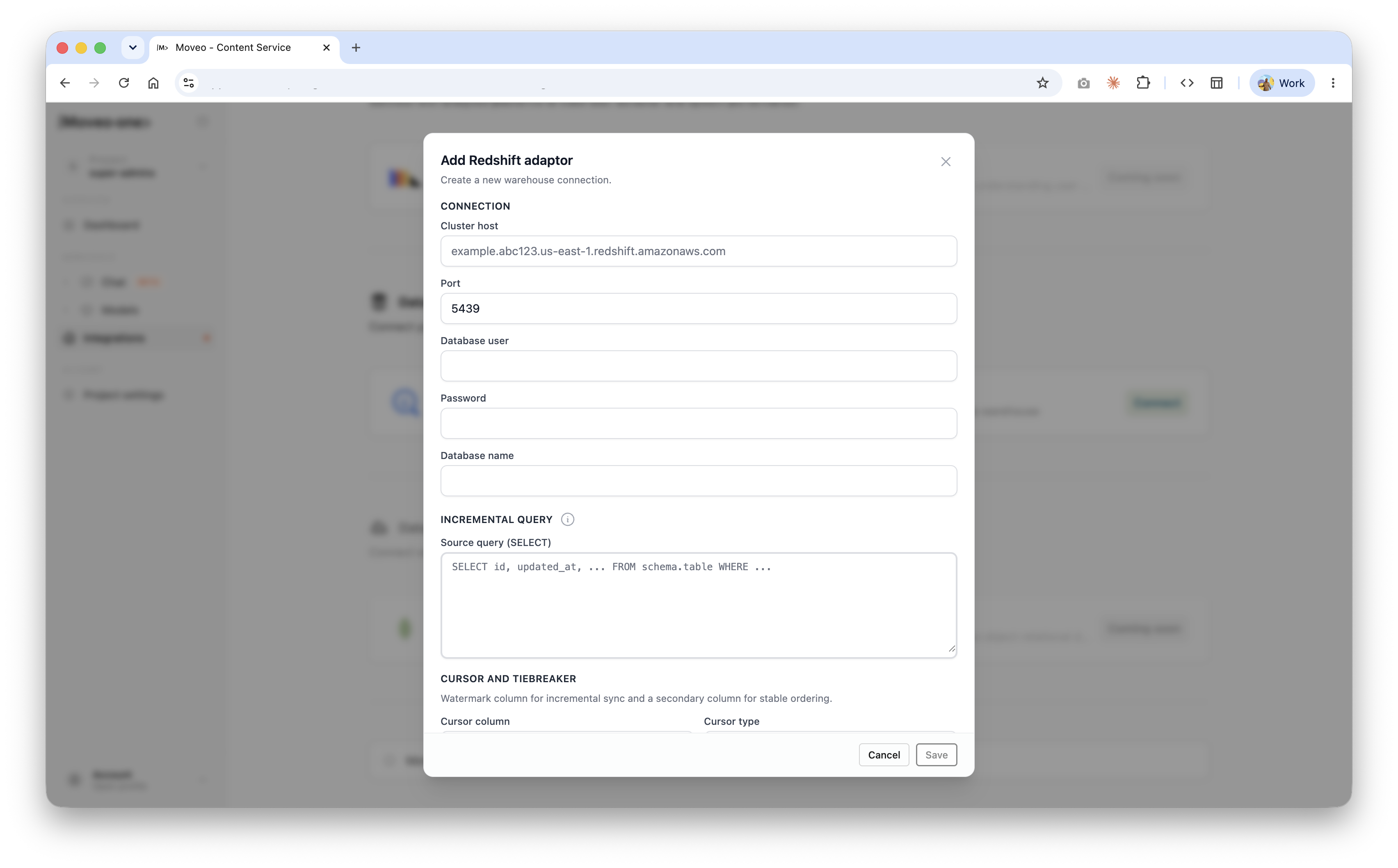
Connection
Field Example Cluster host example.abc123.us-east-1.redshift.amazonaws.comPort 5439Database user your read-only user Password the user's password Database name the database to read from Incremental query
- Source query (SELECT) — the query that returns rows to import, e.g.
SELECT id, updated_at, ... FROM schema.table WHERE ...
Cursor and tiebreaker
- Cursor column — the watermark column used for incremental sync (e.g.
updated_at). - Cursor type — the data type of the cursor column.
- The tiebreaker is a secondary column for stable ordering when two rows share the same cursor value.
- Source query (SELECT) — the query that returns rows to import, e.g.
-
Click Save to create the connection and begin syncing.
VerifyDirect link to Verify
After saving, Moveo One runs the query and begins importing; imported data appears in your Moveo One dashboard. Subsequent syncs only pull rows newer than the last cursor value.
TroubleshootingDirect link to Troubleshooting
- Cannot connect — check the cluster host, port (default
5439), credentials, and that the cluster's security group allows inbound access. - Rows imported once but not updating — make sure the cursor column monotonically increases (e.g. an
updated_attimestamp) and is included in yourSELECT.
Need help? Reach us at support@moveo.one.